Work with cloud projects
The My Projects page — your team’s shared library of ConstructiVision projects.
My Projects in cv-web lists every project your team has saved to the cloud. Sign in at simplestruct.com to use it — the page shows each project’s name, its panel count, and when it was last updated.
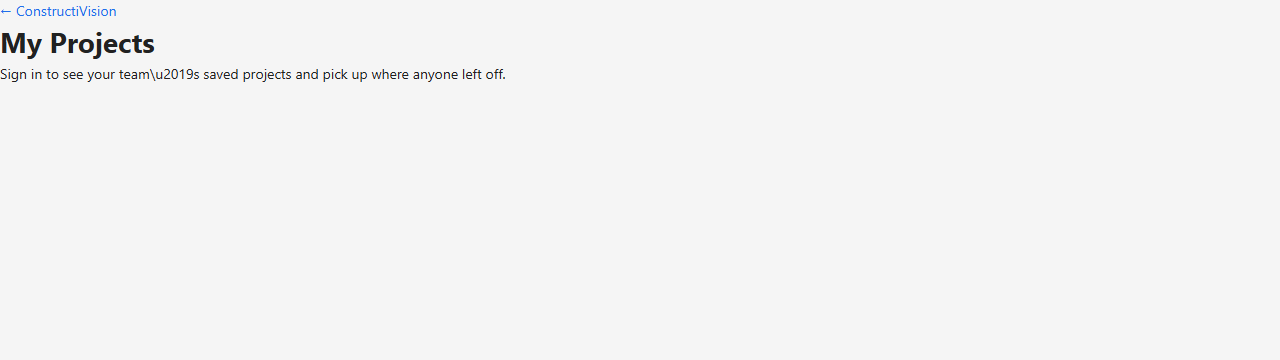
The My Projects page as it appears before you sign in. Once signed in, your team’s project list and the cloud actions described below appear here.
Projects belong to your organization, not to one person
Your account is matched to your organization by your verified company email domain, and the cloud library is shared at that level: everyone on your team sees the same project list, can open any project, and can pick up where anyone left off. Deleting a project removes it for the whole team.
Open a project
Click Open on any project in the list. It loads into the cv-web editor, replacing whatever project you had open there — save your current work first if you want to keep it.
Create a new project
Click New project and give it a name. The project appears in the team list immediately; open it to start adding panels.
Save the project you are working on
Click Save current to cloud to store the project that is open in the editor. If nothing is open yet, cv-web asks you to open or start a project first. Saving and opening your own work is always free — see Membership & Tokens.
Move local projects to the cloud
Projects created before you signed in — or while working offline — live only in that browser on that machine. Click Move local projects to cloud to lift them into the team library in one step. The move is safe to run more than once:
Projects already in the cloud are skipped, not duplicated.
Anything that fails to upload stays local and is retried the next time you run it.
A summary reports what happened, for example “Moved 3 · 1 already in the cloud.”
Import a project file by drag and drop
Drag a ConstructiVision project file (.cvp) onto the drop zone to add it to your cloud library —
for example, a project exported from the AutoCAD plugin or one a teammate sent you. You can drop
several files at once; cv-web reports how many imported and how many could not be read.
Only files that contain a whole project can be imported here. A panel-only or site-only file is not a standalone project — open it from within a project in the editor instead.
Delete a project
Click Delete on a project’s row. cv-web asks you to confirm, because deleting removes the project for everyone on your team and cannot be undone.
Local vs. cloud at a glance
Browser-local project |
Cloud project |
|
|---|---|---|
Where it lives |
This browser on this machine only |
Your organization’s cloud library |
Who can open it |
You, in this browser |
Everyone on your team, anywhere |
Survives clearing the browser |
No |
Yes |
Cost |
Free |
Free — saving and opening never spend tokens |
If the page reports it could not reach your project library, check your connection and click Refresh; your browser-local work is unaffected.