Plot and print drawings
Print a single panel or site drawing — to paper or to PDF — with the right layers on.
ConstructiVision drives AutoCAD’s plotter through its own print commands; each one readies the drawing — saving it, presetting layers, or both — before the plot dialog opens. Use these instead of plotting manually — they set the sheet up the same way every time.
For printing many panels at once, see Print a panel book.
The print commands
All four are on the toolbar and under CV → Print:
Command |
Use it when |
|---|---|
Print Setup |
You want the drawing exactly as currently displayed. Saves, then opens the plot dialog. |
Print All Layers |
You want everything — turns every layer on, saves, then plots. |
Print Select Layouts |
Site drawings — presets the solid / footing / slab layer sets, regenerates, then plots. |
CV → Print → Panel → … |
You want a discipline sheet — a preset layer set for one trade (below), then the plot dialog. |
Discipline presets (CV → Print → Panel)
Each preset turns on just the layers that trade needs, so one panel produces clean per-discipline sheets:
All Layers — the complete panel.
Edge Form — edge-form details.
Ledgers / Top Plate — ledger and top-plate hardware.
Weld Connections — weld-plate connections.
Reveal — reveal / rustication layout.
Pick / Brace Points — lifting inserts and brace points for the construction crew.
In the plot dialog
Every print command ends in the same place — the Plotter Selection dialog:
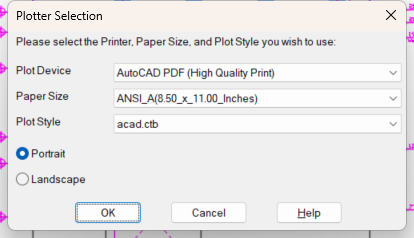
The Plotter Selection dialog — pick the device, paper size, plot style, and orientation.
Plot Device — pick your device. For a PDF, choose a PDF device such as AutoCAD PDF (High Quality Print) or DWG To PDF.pc3.
Paper Size — pick the sheet size your title block targets (e.g. ANSI A for check prints).
Plot Style — the pen/lineweight table (e.g.
acad.ctb).Portrait / Landscape — the sheet orientation; a panel too wide for the sheet upright is rotated to fit.
Choose OK. The drawing plots scaled and centered. (OK stays greyed out while either Plot Device or Plot Style is still None — pick a real one for each to continue.)
Tip
To issue PDFs, you do not need a separate export step — plotting to a PDF device is the PDF export. Pair it with a discipline preset to issue per-trade PDF sheets from one panel.